A SNEAK PEAK INTO THE IMPLEMENTATION AND DEVELOPMENT PROCESS OF YOKAI TALES: FOX’S UI.
DISCLAIMER: All visuals shown are early prototypes and do not reflect the final look of the game. The processes below are presented with limited detail.
Hello adventurers!
This article is the second part of an overview series that summarizes the UX/UI design, implementation, and development process behind Yokai Tales: Fox’s fully playable UI prototype.
In part II we are focusing on the implementation and development. Part I which goes through the early stages of UX/UI design can be found here.
This is the step where the UI shifts from screens to systems. Instead of thinking in isolated layouts, this step focuses on breaking the interface down into reusable building blocks that can scale, adapt, and stay consistent over time. A component-driven approach makes iteration faster, reduces duplication, and sets the foundation for a maintainable UI system.
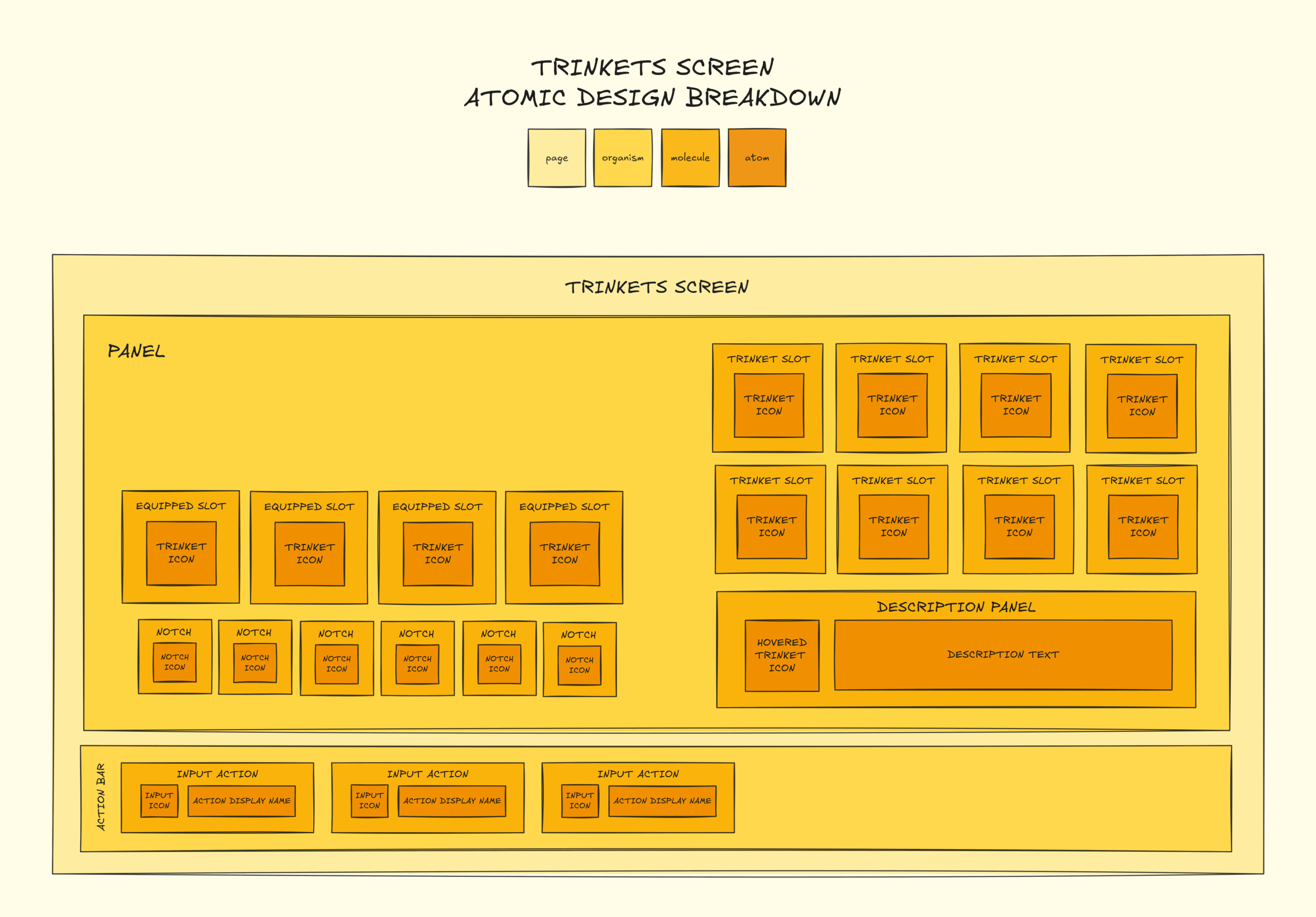
Following the Atomic Design Methodology, we structured the UI into atoms (materials, fonts, icons), molecules (buttons, text blocks, slot components), organisms (panels and screens), and pages (compound screens).
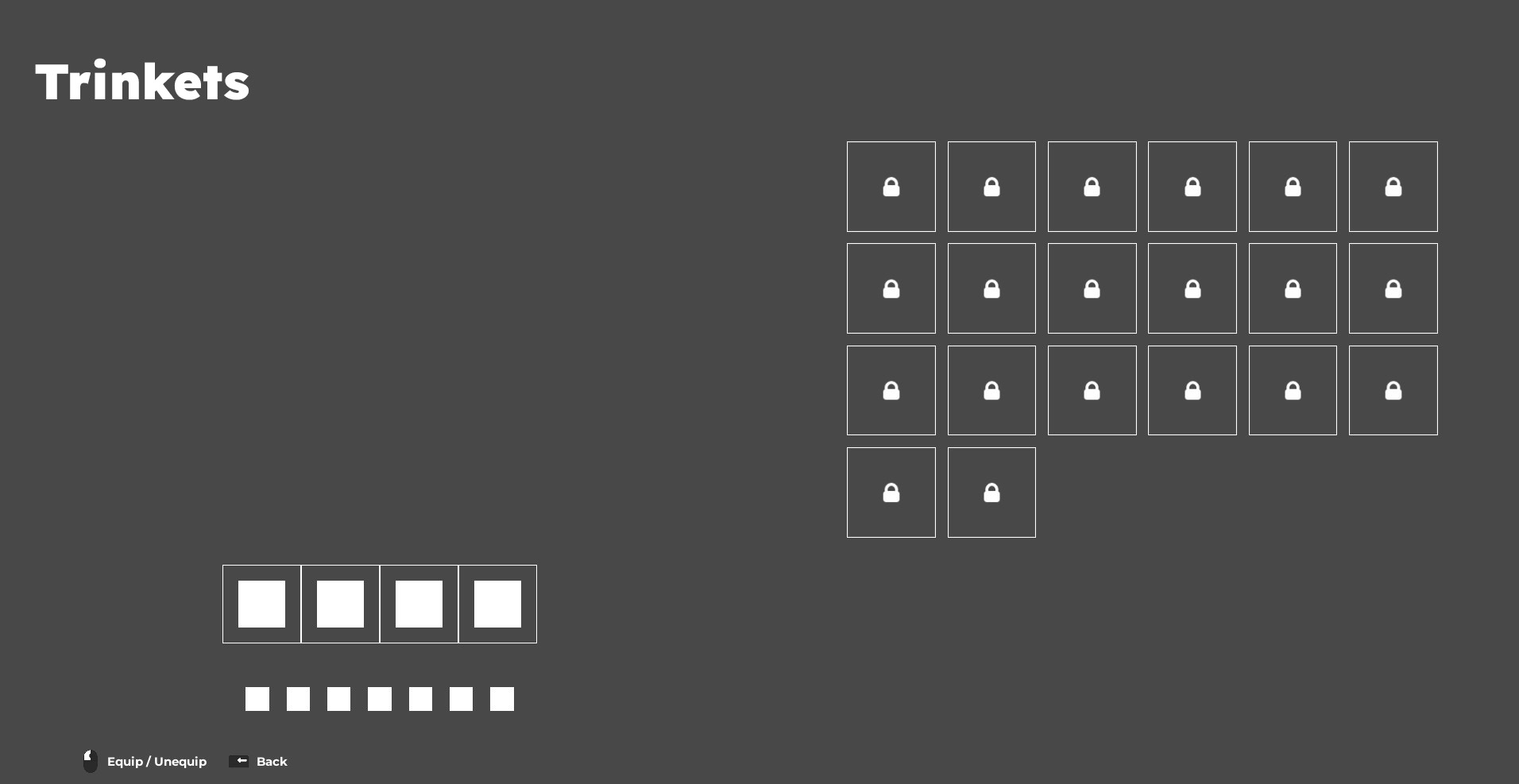
Trinkets Screen Diagram. Breakdown of the screen structure following atomic design and implemented screen.
Once the wireframes were blocked out, their elements were broken down into reusable components and the screens were brought directly into UE5. Working directly in-engine allowed us to start building modular widgets (such as buttons, text elements, and item slots) early using Common UI.
Title Screen Components. Widget hierarchy of the button, panel, and screen components in UE5.
System Architecture
Before diving deeper into implementation, time was spent analyzing technical needs and designing a clearer system structure. Having a solid plan early helps avoid building features blindly and makes sure new functionality fits into a coherent strategy.

Building on the modular foundation, the next step was designing a robust UI architecture that supports clean structure, scalability, and maintainability. This followed established programming principles such as separation of concerns, single responsibility, and reusability. By studying each component’s behavior, recurring patterns emerged and were abstracted into base classes or interfaces. Child widgets then implement, extend, or override this shared logic based on their role.
Equipment Screen Class Diagram. Front-end (view) architecture of the equipment system.
A well-designed system makes the UI easier to extend, maintain, and reason about as complexity grows. Weak architecture quickly turns iteration and expansion into a problem. This approach prioritised decoupling dependencies and automating common processes. As a result, the system supports faster iteration, easier debugging, and smoother expansion as new features are added and playtest feedback is integrated.
Interactive Prototype
Interactive prototyping is about validating ideas in the real environment as early as possible. Instead of relying on static mockups, this step focuses on testing how the UI actually behaves in-game, which is critical for catching navigation, flow, and interaction issues early.
Prototyping directly in UE5, rather than in Figma, saved significant development time. We avoided rebuilding prototypes twice and instead used the interactive prototype as the foundation of the core UI system. This approach directly shaped how screens, navigation, and state changes were handled as development progressed.
At this stage, the focus was function-first rather than visual polish. The prototype allowed us to test transitions, navigation flow, and focus handling in context, and make early adjustments before committing to final visuals. It was built in UMG using Blueprints, Common UI, and the Material Editor. The first iteration was tested internally, greenlit by the team, and then merged into the game for external playtesting.
[IMAGE – COMING SOON]
[IMAGE – COMING SOON]
[IMAGE – COMING SOON]
[IMAGE – COMING SOON]
Shaders and Animation
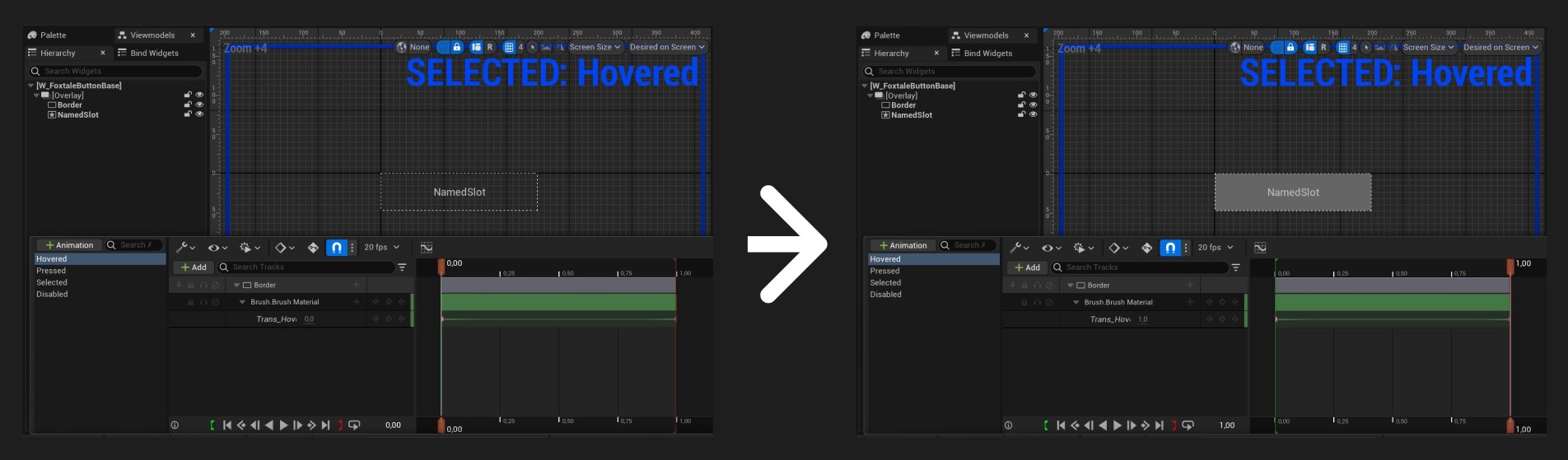
For animation and visual feedback, we’ve used a hybrid approach. Inspired by Epic’s own advanced shader guidelines, we’ve chosen to build shader-driven UI materials wherever it makes sense. This gives us more expressive interfaces with better performance and a cleaner, modifiable setup compared to timeline-heavy animations to support a more responsive and visually engaging interface.
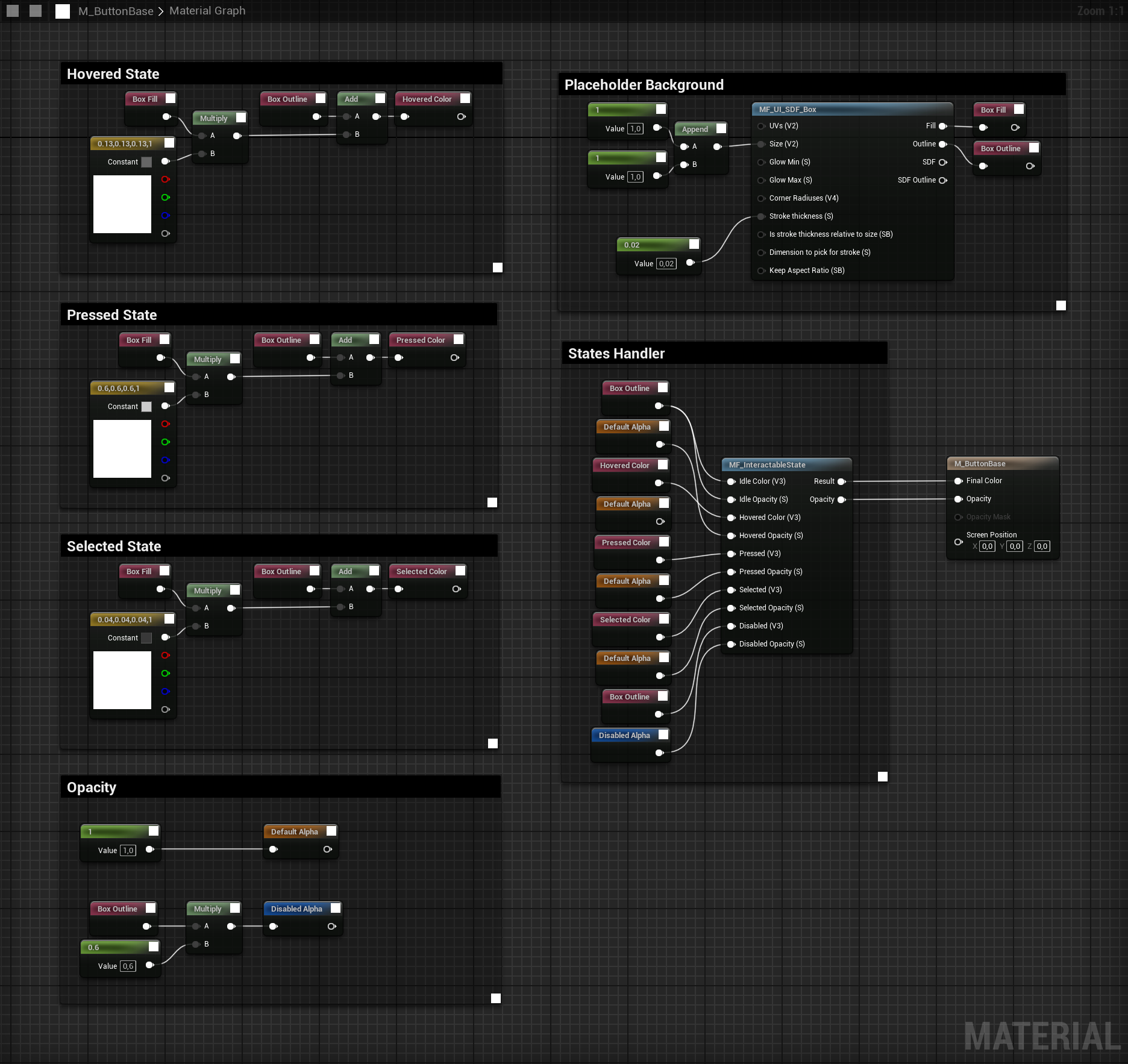
BUTTON STATES
For animation and visual feedback, we’ve used a hybrid approach. Inspired by Epic’s own UI development guidelines, we’ve chosen to build shader-driven UI materials wherever it makes sense. This gives us better performance and a cleaner, modifiable setup compared to timeline-heavy animations to support a more responsive and visually engaging interface. By combining materials and sequencer, we’re aiming for a UI that’s expressive, optimized, and modular.
[IMAGE – COMING SOON]
[IMAGE – COMING SOON]
[IMAGE – COMING SOON]
[IMAGE – COMING SOON]
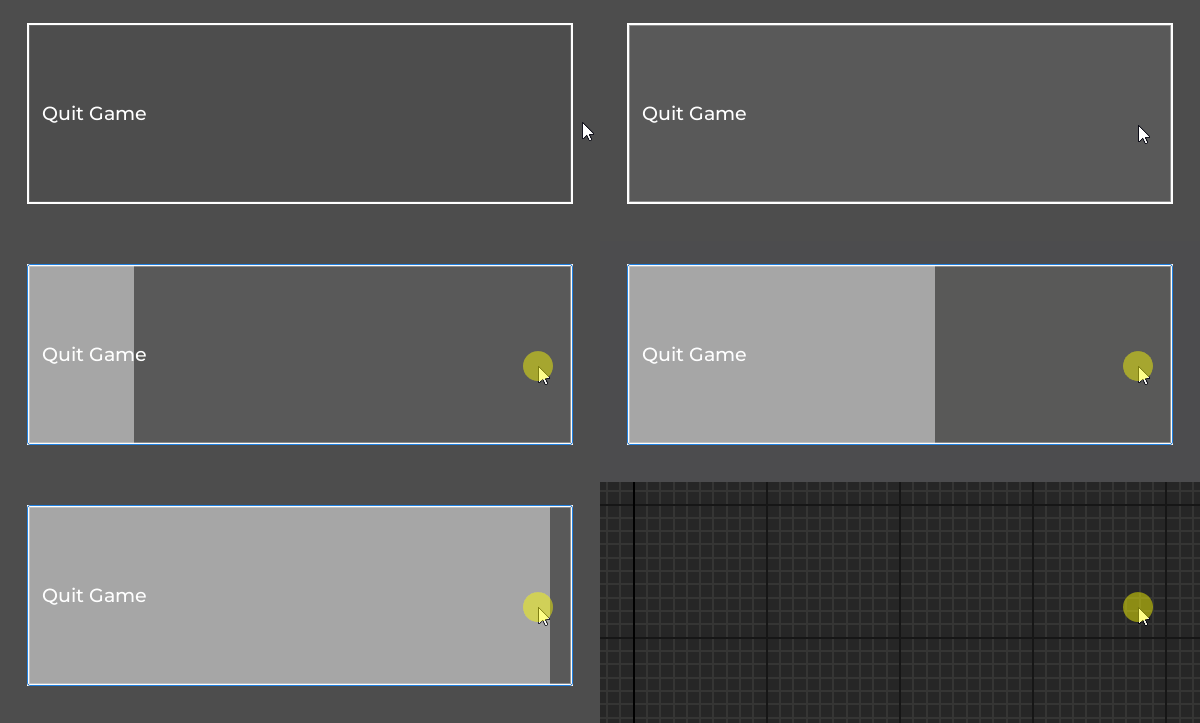
For hold interactions, we built a “hold fill” animation inside the material to visually show button progress. One challenge here was that UE5.4 didn’t expose the Hold Duration from the CommonUI Hold Data asset in Blueprints. As a workaround, we used a custom variable to set the hold time manually. Luckily, this is fixed in later versions and will be integrated if the project gets migrated.
[IMAGE – COMING SOON]
SETTINGS BUTTONS
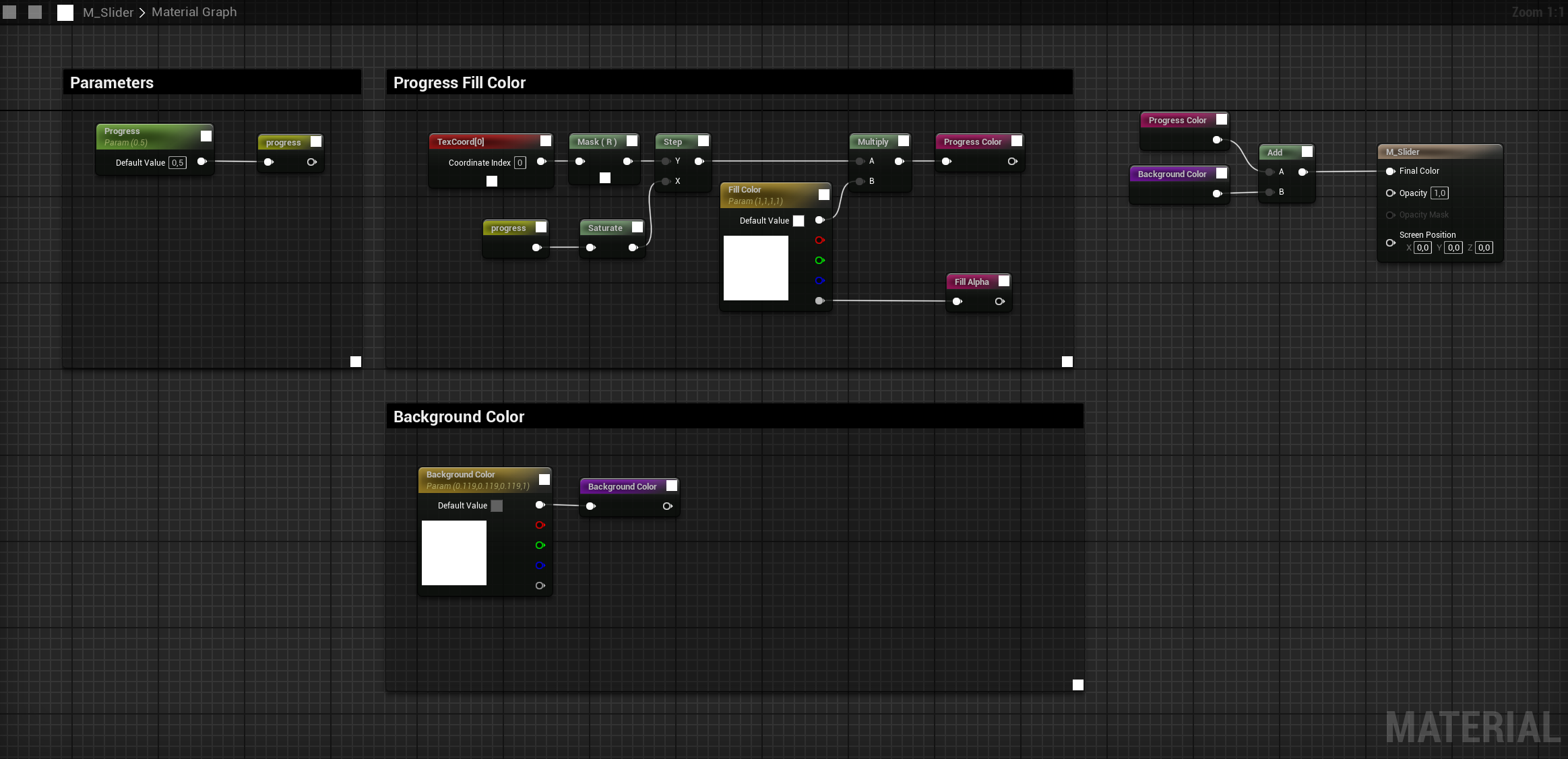
For the settings buttons, we got inspired by how the Lyra project handles them. The Slider uses an invisible, hit-testable Analog Slider as the actual button input, with a Progress Bar Material layered on top. The material values are driven by the analog slider by updating the Progress scalar parameter.
[IMAGE – COMING SOON]
[IMAGE – COMING SOON]
[IMAGE – COMING SOON]
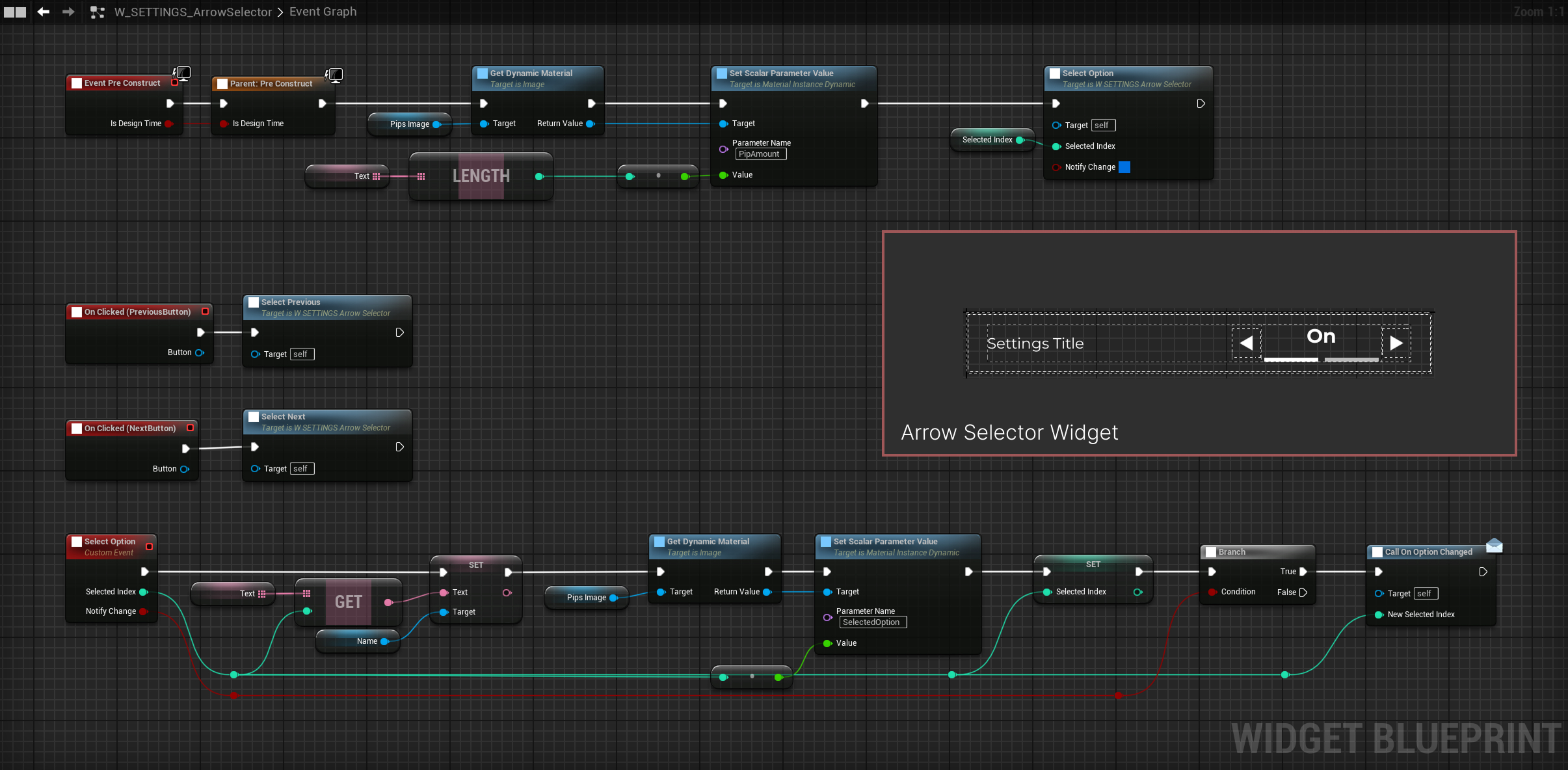
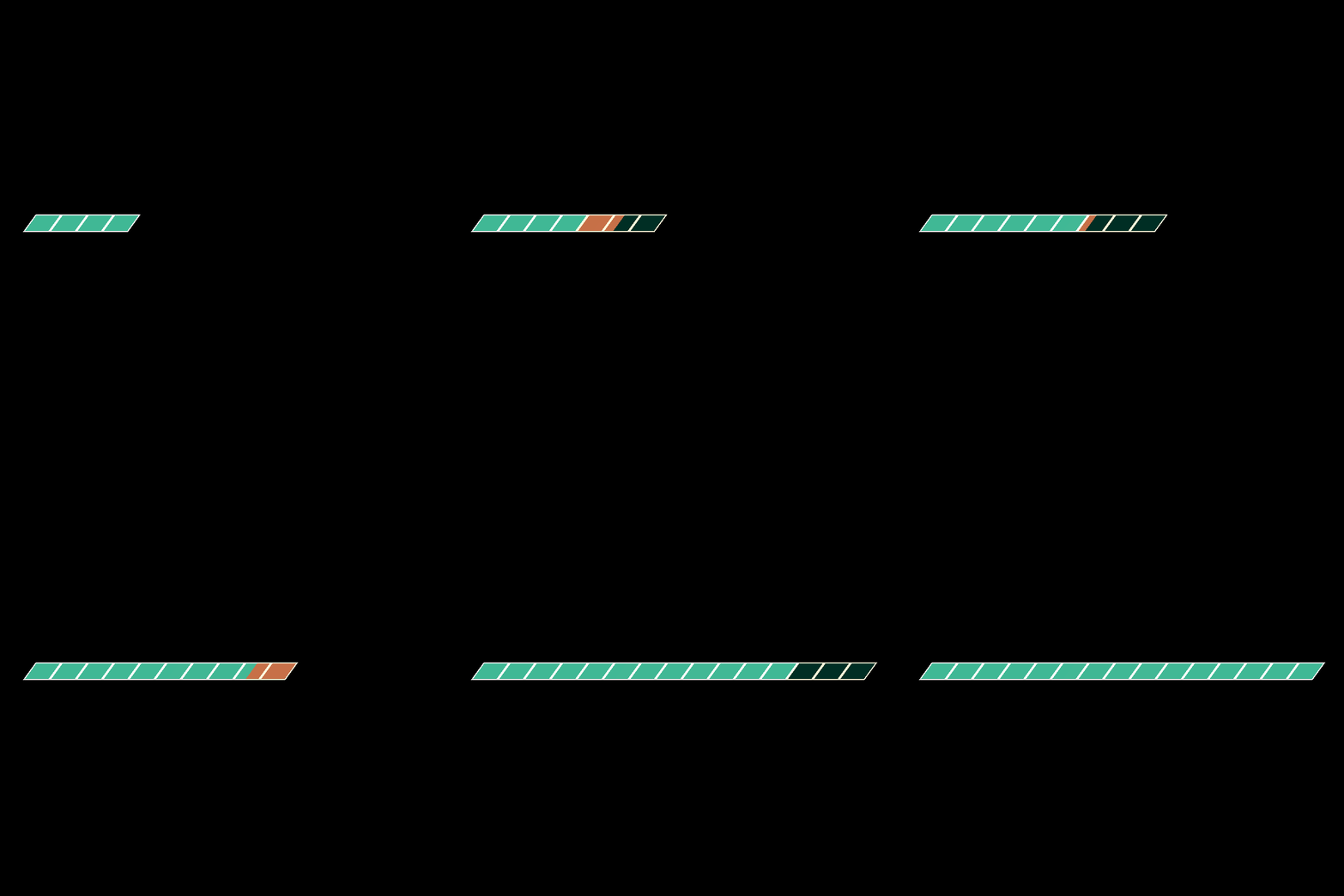
The Arrow Selector is more complex. It handles both multiple-choice options and toggles. We define an array of options, and its length sets the material’s pip count. Every time the user changes the option, the material updates to show the currently selected position. To support natural gamepad navigation, we also had to manually configure the Left and Right navigation rules.
[IMAGE – COMING SOON]
[IMAGE – COMING SOON]
[IMAGE – COMING SOON]
[IMAGE – COMING SOON]
You can read more about other material-driven examples used in the game in the following articles:
Materials with configurable values for dynamic UI (text) effects
Natural Navigation and Focus Handling
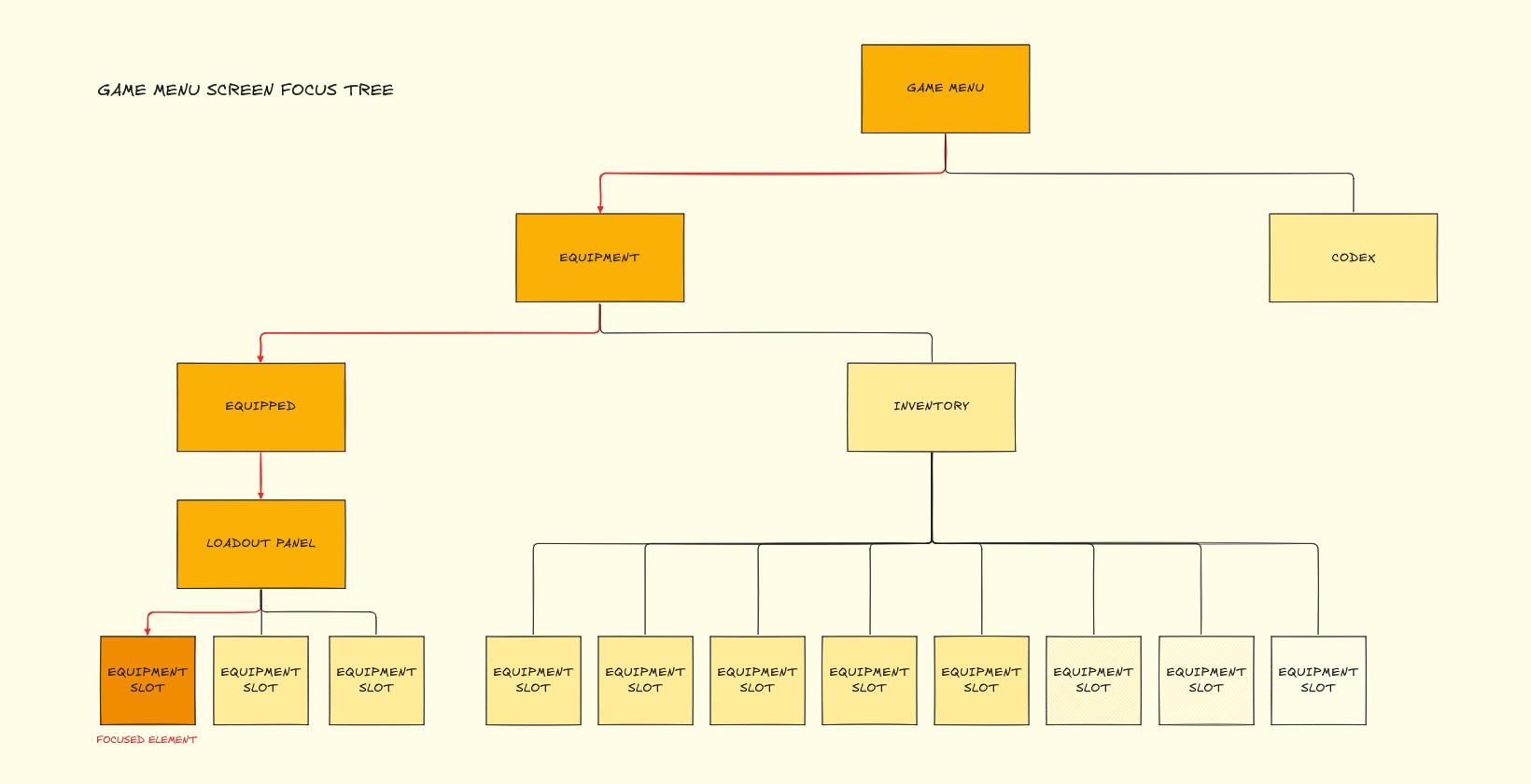
One of the trickiest parts of building UIs in UE5 is keeping the focus exactly where you want it. While Common UI provides a solid foundation, it still requires significant extensions and custom handling to make navigation feel truly natural, whether using a controller or keyboard, especially when dealing with stacked menus, input changes, and screen transitions.
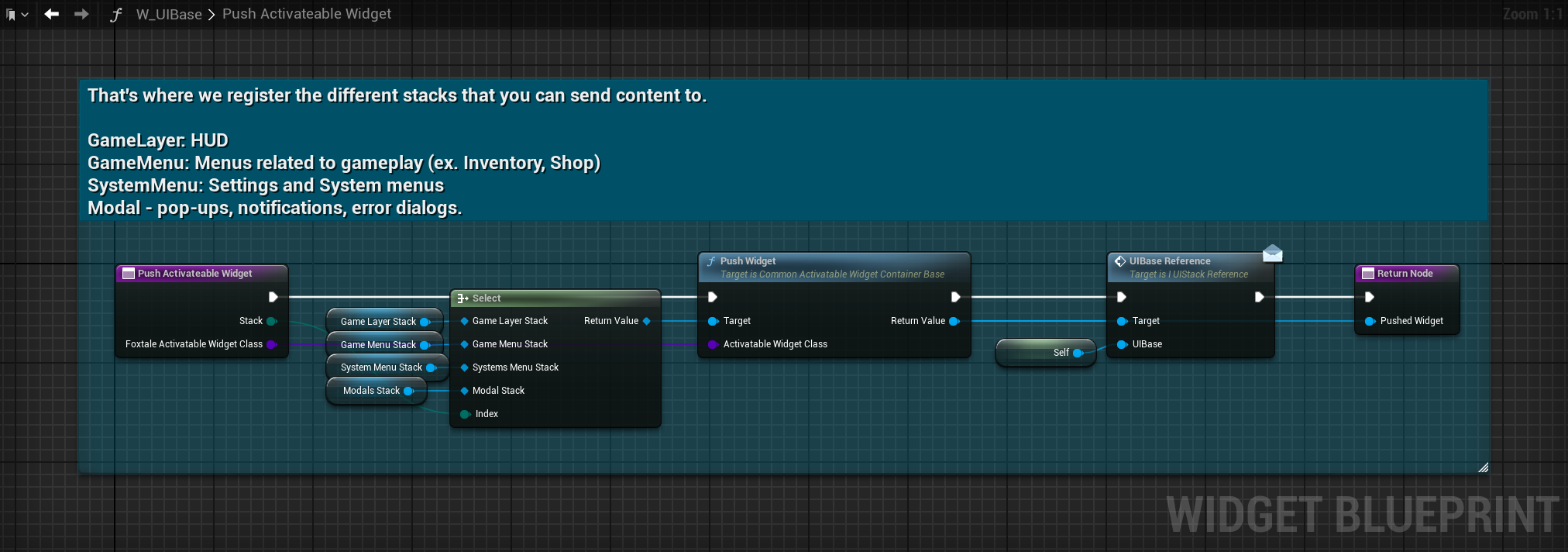
Our system is built around a central UI Base, which holds references to four distinct Common Activatable Widget Stacks, each handling a specific category of screens:
[description – COMING SOON]
In our system, focus is managed consistently across the UI by making every screen extend our custom FoxtaleCommonActivatableBase, which in turn extends CommonActivatableWidget. This base class handles automatic focus setting to the defined Desired Focus Target when the screen is activated. We rely on Common UI Get Desired Focus Target and we generally avoid calling Set Focus function directly on leaf widgets, preventing conflicts that could break the focus tree.
[IMAGE – COMING SOON]
Viewmodels
Following the Separation of Concerns principle, we broke the logic and the presentation into separate systems make the process of building the UI less destructive and more efficient, as designers can change the visual presentation without breaking the code behind the UI, and programmers can focus on data and systems without needing a completed frontend.
To illustrate how the architecture is set up, we’ll use the Trinkets screen as an example:
Trinkets Screen Class Diagram. Class relationships, data flow, and MVVM setup for the Trinkets Screen architecture.
In our system, focus is managed consistently across the UI by making every screen extend our custom FoxtaleCommonActivatableBase, which in turn extends CommonActivatableWidget. This base class handles automatic focus setting to the defined Desired Focus Target when the screen is activated. We rely on Common UI Get Desired Focus Target while generally avoid calling Set Focus function directly on leaf widgets, preventing conflicts that could break the focus tree.
Performance Considerations
When building a UI system, it’s important to consider optimisation from the start as performance matters both technically and for the player’s experience. Some of the optimisation choices we implemented included:
quit using bindings or ticks by using an event-driven architecture and Viewmodels to connect data logic with the view.
keeping widget nesting and canvas usage to the minimum necessary
combining visuals in materials to reduce widget nesting
using materials instead of Sequencer for animations
For example, buttons with icons such as the Trinket Slot have been optimised to use a single material for the icon and background instead of multiple nested widgets. In the future it can be further optimised to combine the notches count, as well. Techniques like widget invalidation will also help improve performance, but have not been implemented for the prototype.